airglass


Mirror your iPhone or iPad to a Linux desktop over AirPlay, tuned for the lowest latency your hardware can do, and control it with your computer's mouse and keyboard.
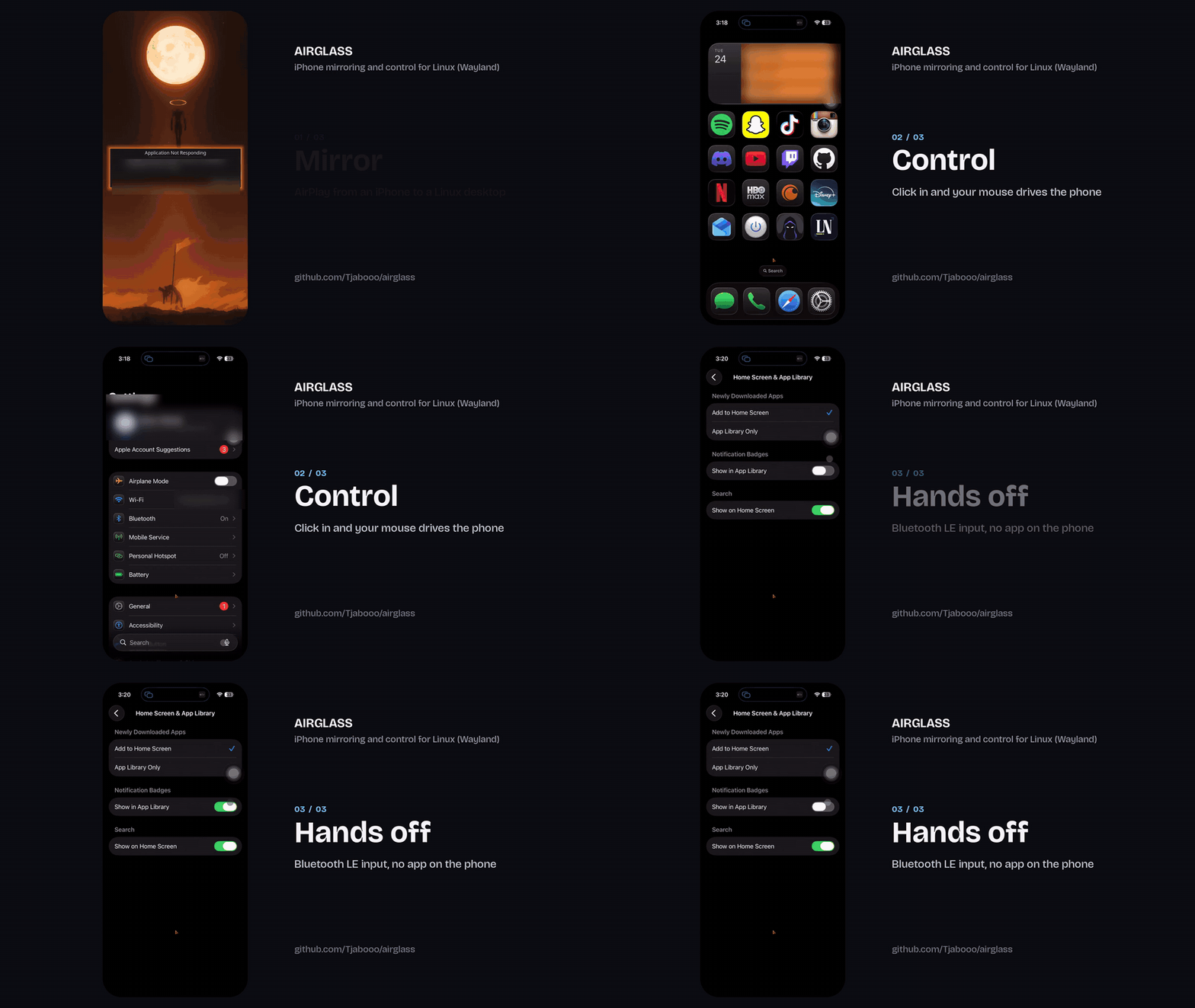
airglass is a small launcher around UxPlay, the open-source AirPlay mirroring server. UxPlay speaks the AirPlay protocol; airglass picks the fastest GStreamer pipeline for your machine, runs it as a systemd user service, and tells you (and your status bar) when a phone connects.
Features
- Low latency by default: frames are shown the moment they're decoded (
-vsync no), 60 fps instead of UxPlay's default of 30, nodecodebinqueueing when a direct decoder is available. - Zero-copy video on VA-API GPUs (AMD, Intel):
vah264dechands DMA-BUF frames straight towaylandsink, so the picture never takes a trip through system memory. - Falls back automatically:
vah264dec>nvh264dec>v4l2h264dec>avdec_h264. - Shows up in Control Center → Screen Mirroring under the name you choose.
- One command to toggle:
airglass toggle(bind it to a key). - Desktop notifications when mirroring starts and stops, plus a state file (
off/listening/mirroring) and anON_CHANGEhook for status bars. - A new phone can take over from the current one; optional 4-digit PIN.
- Control the phone from the computer: click inside the mirror window and your mouse and keyboard drive the phone over Bluetooth; Right Ctrl gives them back.
airglass doctorchecks every dependency and prints the firewall rules you need.
Install
Dependencies: UxPlay, Avahi, GStreamer with the bad/good/libav plugin sets, a VA-API driver for hardware decoding; for phone control BlueZ 5.50+, python-evdev, dbus-python and PyGObject, and read access to /dev/input (the input group).
Arch Linux:
yay -S uxplay gst-plugin-va gst-libav gst-plugins-good gst-plugins-bad python-evdev python-dbus python-gobject
sudo systemctl enable --now avahi-daemon
Debian/Ubuntu:
sudo apt install uxplay gstreamer1.0-plugins-bad gstreamer1.0-libav gstreamer1.0-plugins-good gstreamer1.0-vaapi avahi-daemon python3-evdev python3-dbus python3-giThen:
git clone https://github.com/Tjabooo/airglass
cd airglass
./install.sh        # installs ~/.local/bin/airglass + the user service, then runs doctor
airglass start
If you run a firewall, the phone has to reach mDNS (UDP 5353) and AirPlay's fixed ports (TCP 7000, 7001, 7100 and UDP 6000, 6001, 7011). airglass doctor prints ready-made ufw rules for your LAN.
Usage
airglass toggle     start or stop the receiver
airglass start | stop | restart | status
airglass state      off / listening / mirroring
airglass pair       let a phone pair for mouse/keyboard control (120 s)
airglass control    phone link + capture state
airglass doctor     check dependencies + firewall, print the UxPlay command
airglass logs       follow the service log
airglass run        run in the foreground
On the iPhone: Control Center → Screen Mirroring → pick your computer's name.
Hyprland example
hl.window_rule({ name = "airglass-float", match = { class = "^uxplay$" }, float = true, center = true,
                 max_size = { "monitor_w*0.9", "monitor_h*0.92" } })
hl.window_rule({ name = "airglass-awake", match = { class = "^uxplay$" }, idle_inhibit = "always" })
hl.bind("SUPER + ALT + I", hl.dsp.exec_cmd(os.getenv("HOME") .. "/.local/bin/airglass toggle"))Controlling the phone
AirPlay only carries video one way, so airglass adds a second link: the computer shows up on the phone as a Bluetooth LE mouse and keyboard (HID over GATT, through BlueZ's D-Bus API, no root needed).
- On the iPhone, turn on Settings → Accessibility → Touch → AssistiveTouch (that's what gives iOS a mouse pointer).
- Run
airglass pair. For the next 120 seconds the computer accepts a new pairing: on the phone open Settings → Bluetooth and tap your computer's name under Other Devices, then confirm the code. - While mirroring, click inside the mirror window: your mouse and keyboard now drive the phone. Right Ctrl gives them back.
How it behaves:
- Input is grabbed at the kernel level (
EVIOCGRAB), so nothing you do while controlling the phone reaches the desktop. If the phone disconnects, the mirror window closes, or the daemon stops, the grab is released at once; a systemd watchdog kills the daemon if it ever hangs, which also releases it. - iOS only accepts relative mouse movement, so the phone's pointer moves like a trackpad's and won't sit exactly under your desktop cursor. Tune
SENSITIVITYand the phone's AssistiveTouch Tracking Speed to taste. - Mouse buttons 4 and 5 are sent as buttons, so you can give them actions in AssistiveTouch → Devices (Home and App Switcher work well). The Home media key sends Home.
- Pairing is only accepted inside the
airglass pairwindow, and reports only go to a paired device. - While idle, the daemon asks the kernel not to wake it for mouse movement at all (
EVIOCSMASK), so high-polling-rate mice cost nothing until you're actually controlling the phone.
Configuration
~/.config/airglass/config (created from config.example on install), KEY=value per line:
| Key | Default | What it does |
|---|---|---|
NAME |
hostname | Name shown on the phone |
RESOLUTION |
1920x1080 |
Largest picture the phone is asked to send; set it to your monitor |
FPS |
60 |
Frame rate requested from the phone |
DECODER |
auto |
GStreamer H.264 decoder |
VIDEOSINK |
auto |
waylandsink on Wayland, else glimagesink |
AUDIOSINK |
auto |
pulsesink > pipewiresink > autoaudiosink; 0 = no audio |
AV_SYNC |
no |
yes holds video back for lip sync (adds latency) |
AUDIO_BUFFER_MS |
60 |
With AV_SYNC=no: most audio allowed to queue before old audio is dropped |
FULLSCREEN |
no |
Open the mirror window fullscreen |
KEEP_WINDOW |
no |
Keep the window after the phone stops |
TAKEOVER |
yes |
A new phone may take over |
PIN |
empty | 4-digit PIN asked on first connect |
NOTIFY |
yes |
Desktop notifications |
ON_CHANGE |
empty | Shell command after each state change ($AIRGLASS_STATE is set) |
EXTRA_ARGS |
empty | Extra UxPlay options, e.g. -h265 |
CONTROL |
yes |
Run the Bluetooth mouse/keyboard bridge |
RELEASE_KEY |
KEY_RIGHTCTRL |
evdev key that hands input back |
SENSITIVITY |
1.0 |
Multiplier on mouse movement sent to the phone |
SCROLL_INVERT |
no |
Flip the scroll direction |
REPORT_INTERVAL_MS |
8 |
How often batched mouse motion is sent |
MIRROR_CLASS |
^(uxplay|airglass)$ |
Window class regex of the mirror window |
How it works
The phone finds the receiver over mDNS (Avahi) and streams H.264 over AirPlay to UxPlay. airglass builds UxPlay's pipeline:
appsrc → h264parse → vah264dec → videoconvert/videoscale (passthrough) → waylandsink sync=falseWith matching DMA-BUF caps the convert/scale elements pass frames through untouched, so decode and display stay on the GPU. sync=false drops the clock wait at the sink: each frame goes to the compositor as soon as it exists. What's left is the phone's encoder and the Wi-Fi hop, which no receiver can remove; a 5 GHz network and keeping the phone close help most.
airglass reads UxPlay's log to know when mirroring starts and stops, writes $XDG_RUNTIME_DIR/airglass/state and sends notifications.
Phone control is airglass-hid, a separate user service (airglass-hid.service, started with the receiver). It registers a GATT HID service (keyboard, 5-button mouse with 16-bit motion, consumer keys) and an LE advertisement with BlueZ, and takes notification sockets from BlueZ (AcquireNotify) so each report is one write with no D-Bus round trip. Button and key changes are sent immediately; mouse motion is batched every few milliseconds so the Bluetooth link never queues up stale movement.
License
MIT for airglass itself. UxPlay is GPL-3.0 and is installed separately.